


OneDrive connector
OAuth 2.0Files & DocumentsConnect to OneDrive. Manage files, folders, and cloud storage with Microsoft OneDrive
OneDrive connector
-
Install the SDK
Section titled “Install the SDK”Terminal window npm install @scalekit-sdk/nodeTerminal window pip install scalekit -
Set your credentials
Section titled “Set your credentials”Add your Scalekit credentials to your
.envfile. Find values in app.scalekit.com > Developers > API Credentials..env SCALEKIT_ENVIRONMENT_URL=<your-environment-url>SCALEKIT_CLIENT_ID=<your-client-id>SCALEKIT_CLIENT_SECRET=<your-client-secret> -
Set up the connector
Section titled “Set up the connector”Register your OneDrive credentials with Scalekit so it handles the token lifecycle. You do this once per environment.
Dashboard setup steps
Register your Scalekit environment with the OneDrive connector so Scalekit handles the authentication flow and token lifecycle for you. The connection name you create will be used to identify and invoke the connection programmatically. Then complete the configuration in your application as follows:
-
Set up auth redirects
-
In Scalekit dashboard, go to AgentKit > Connections > Create Connection. Find OneDrive and click Create. Copy the redirect URI. It will look like
https://<SCALEKIT_ENVIRONMENT_URL>/sso/v1/oauth/<CONNECTION_ID>/callback.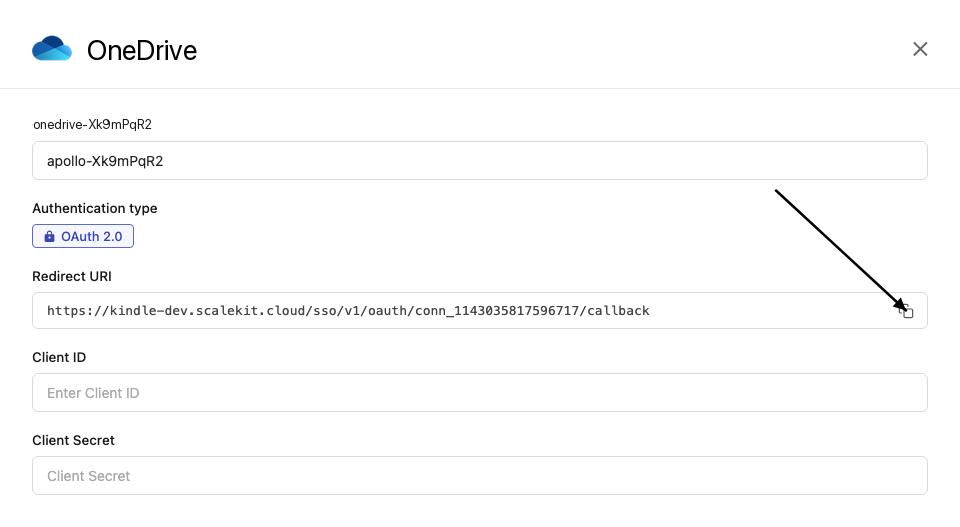
-
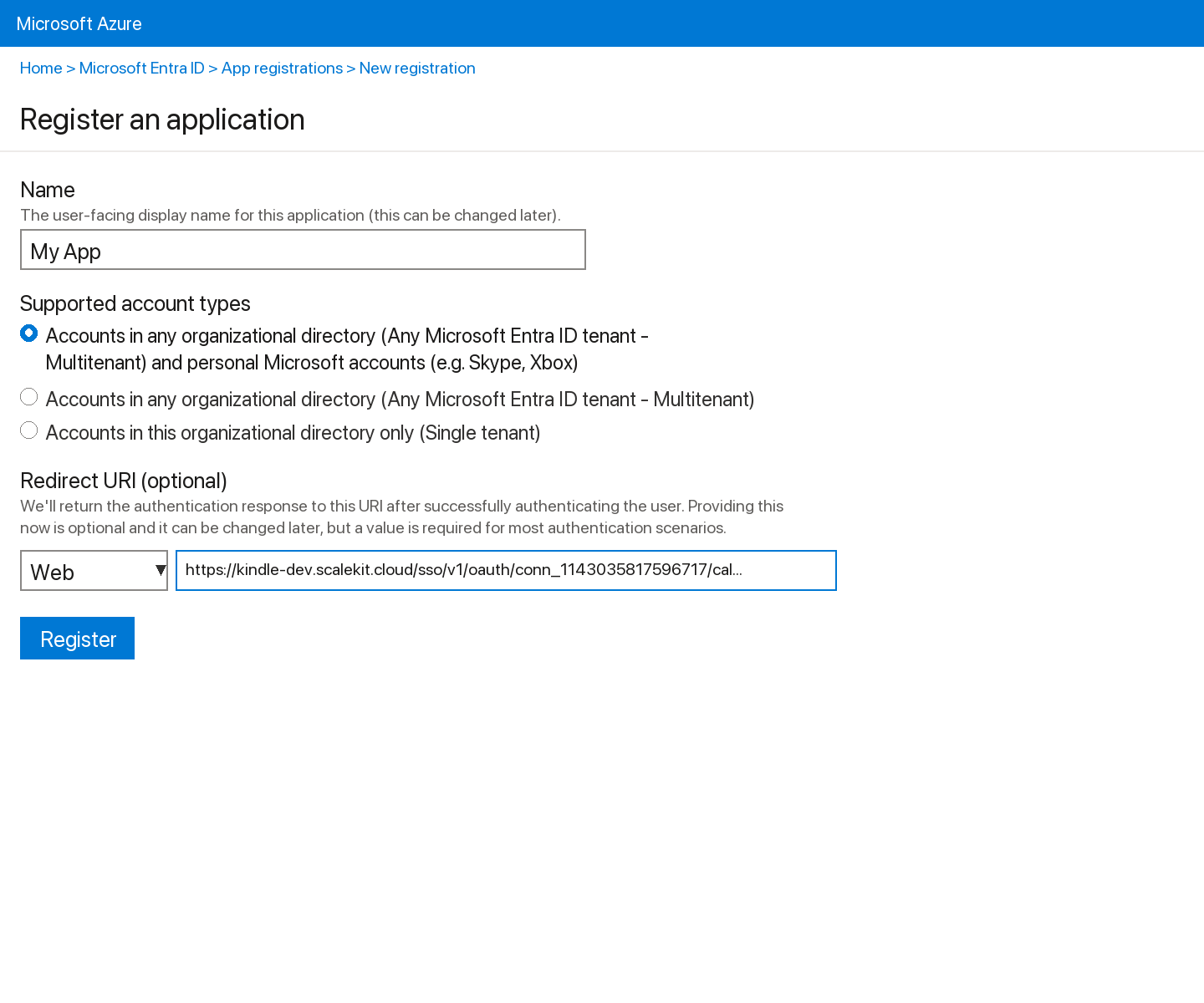
Sign into portal.azure.com and go to Azure Active Directory → App registrations → New registration.
-
Enter a name for your app.
-
Under Supported account types, select Accounts in any organizational directory (Any Azure AD directory - Multitenant) and personal Microsoft accounts.
-
Under Redirect URI, select Web and paste the redirect URI from step 1. Click Register.
-
-
Get your client credentials
-
Go to Certificates & secrets → New client secret, set an expiry, and click Add. Copy the Value immediately.
-
From the Overview page, copy the Application (client) ID.
-
-
Add credentials in Scalekit
-
In Scalekit dashboard, go to AgentKit > Connections and open the connection you created.
-
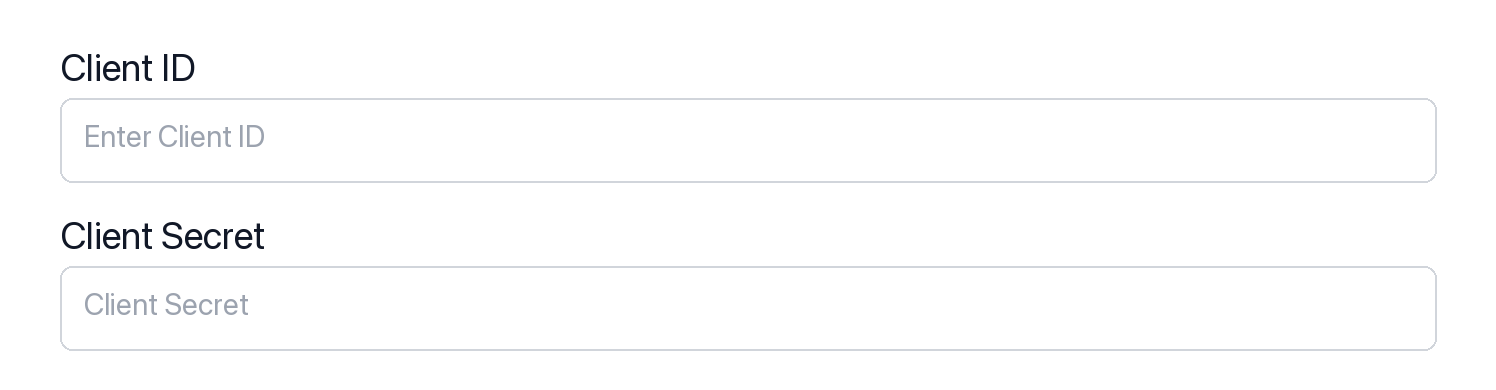
Enter your credentials:
- Client ID (Application (client) ID from Azure)
- Client Secret (from Certificates & secrets)
- Permissions (scopes — see Microsoft Graph permissions reference)
-
Click Save.
-
-
-
Authorize and make your first call
Section titled “Authorize and make your first call”quickstart.ts import { ScalekitClient } from '@scalekit-sdk/node'import 'dotenv/config'const scalekit = new ScalekitClient(process.env.SCALEKIT_ENV_URL,process.env.SCALEKIT_CLIENT_ID,process.env.SCALEKIT_CLIENT_SECRET,)const actions = scalekit.actionsconst connector = 'onedrive'const identifier = 'user_123'// Generate an authorization link for the userconst { link } = await actions.getAuthorizationLink({ connectionName: connector, identifier })console.log('Authorize OneDrive:', link)process.stdout.write('Press Enter after authorizing...')await new Promise(r => process.stdin.once('data', r))// Make your first callconst result = await actions.executeTool({connector,identifier,toolName: 'onedrive_get_drive',toolInput: {},})console.log(result)quickstart.py import osfrom scalekit.client import ScalekitClientfrom dotenv import load_dotenvload_dotenv()scalekit_client = ScalekitClient(env_url=os.getenv("SCALEKIT_ENV_URL"),client_id=os.getenv("SCALEKIT_CLIENT_ID"),client_secret=os.getenv("SCALEKIT_CLIENT_SECRET"),)actions = scalekit_client.actionsconnection_name = "onedrive"identifier = "user_123"# Generate an authorization link for the userlink_response = actions.get_authorization_link(connection_name=connection_name,identifier=identifier,)print("Authorize OneDrive:", link_response.link)input("Press Enter after authorizing...")# Make your first callresult = actions.execute_tool(tool_input={},tool_name="onedrive_get_drive",connection_name=connection_name,identifier=identifier,)print(result)
What you can do
Section titled “What you can do”Connect this agent connector to let your agent:
- File checkin, checkout, download — Check in a checked-out OneDrive file to make the version available to others
- Item copy drive, follow drive, move drive — Copy a file or folder in the signed-in user’s personal OneDrive to a new location asynchronously
- Drive copy item in — Copy a file or folder in a specific drive to a new location asynchronously
- Create folder, sharing link, sharing link in drive — Create a new folder in OneDrive under the specified parent folder
- Delete drive item, item in drive, permission — Delete a file or folder from the signed-in user’s personal OneDrive by item ID
- Checkout discard — Discard a pending checkout for a OneDrive file, releasing the lock without saving any changes
Common workflows
Section titled “Common workflows”Proxy API call
const result = await actions.request({ connectionName: 'onedrive', identifier: 'user_123', path: '/v1.0/me/drive', method: 'GET',});console.log(result);result = actions.request( connection_name='onedrive', identifier='user_123', path="/v1.0/me/drive", method="GET")print(result)Execute a tool
const result = await actions.executeTool({ connector: 'onedrive', identifier: 'user_123', toolName: 'onedrive_list', toolInput: {},});console.log(result);result = actions.execute_tool( connection_name='onedrive', identifier='user_123', tool_name='onedrive_list', tool_input={},)print(result)Tool list
Section titled “Tool list”Use the exact tool names from the Tool list below when you call execute_tool. If you’re not sure which name to use, list the tools available for the current user first.
onedrive_checkin_file#Check in a checked-out OneDrive file to make the version available to others. Optionally provide a comment describing the changes and specify the check-in type. Requires the file to be checked out first.3 params
Check in a checked-out OneDrive file to make the version available to others. Optionally provide a comment describing the changes and specify the check-in type. Requires the file to be checked out first.
item_idstringrequiredThe unique ID of the OneDrive file to check in. The file must currently be checked out. Obtain item IDs from list or get drive item operations.check_in_asstringoptionalThe type of check-in to perform. 'published' makes the version visible to all users. 'unspecified' (default) lets the server decide based on document library configuration.commentstringoptionalAn optional comment to associate with the checked-in version, describing the changes made. Maximum length varies by library configuration.onedrive_checkout_file#Check out a OneDrive file to prevent others from editing it while you make changes. Once checked out, only you can modify the file until it is checked back in or the checkout is discarded.1 param
Check out a OneDrive file to prevent others from editing it while you make changes. Once checked out, only you can modify the file until it is checked back in or the checkout is discarded.
item_idstringrequiredThe unique ID of the OneDrive file to check out. The file must be in a document library that supports check out. Obtain item IDs from list or get drive item operations.onedrive_copy_drive_item#Copy a file or folder in the signed-in user's personal OneDrive to a new location asynchronously. Returns HTTP 202 with a monitor URL; copy completes in the background. To copy an item in a specific drive by drive ID (e.g. a SharePoint document library), use onedrive_copy_item_in_drive instead.3 params
Copy a file or folder in the signed-in user's personal OneDrive to a new location asynchronously. Returns HTTP 202 with a monitor URL; copy completes in the background. To copy an item in a specific drive by drive ID (e.g. a SharePoint document library), use onedrive_copy_item_in_drive instead.
item_idstringrequiredThe unique ID of the OneDrive file or folder to copy. Obtain item IDs from list or get drive item operations.new_parent_idstringrequiredThe item ID of the destination folder for the copy. Use "root" to copy the item to the top level of OneDrive.new_namestringoptionalOptional name for the copied item in the destination. If omitted, the copy retains the original name.onedrive_copy_item_in_drive#Copy a file or folder in a specific drive to a new location asynchronously. Works across any drive accessible to the signed-in user, including SharePoint document libraries and Teams drives. Returns HTTP 202 with a monitor URL; the copy completes in the background. To copy an item in the signed-in user's personal OneDrive, use onedrive_copy_drive_item instead.4 params
Copy a file or folder in a specific drive to a new location asynchronously. Works across any drive accessible to the signed-in user, including SharePoint document libraries and Teams drives. Returns HTTP 202 with a monitor URL; the copy completes in the background. To copy an item in the signed-in user's personal OneDrive, use onedrive_copy_drive_item instead.
drive_idstringrequiredThe unique ID of the drive containing the item to copy. Obtain drive IDs from onedrive_list_drives or sharepoint_list_drives.item_idstringrequiredThe unique ID of the file or folder to copy. Obtain item IDs from list or get item operations.new_parent_idstringrequiredThe item ID of the destination folder for the copy. Use "root" to copy to the top level of the drive.new_namestringoptionalOptional name for the copied item in the destination. If omitted, the copy retains the original name.onedrive_create_folder#Create a new folder in OneDrive under the specified parent folder. Use "root" as the parent_id to create a top-level folder. Supports conflict behavior control when a folder with the same name already exists.3 params
Create a new folder in OneDrive under the specified parent folder. Use "root" as the parent_id to create a top-level folder. Supports conflict behavior control when a folder with the same name already exists.
namestringrequiredThe name of the folder to create. Must be a valid folder name without path separators.parent_idstringrequiredThe ID of the parent folder under which to create the new folder. Use "root" to create a folder at the top level of OneDrive. Obtain folder IDs from list or get drive item operations.conflict_behaviorstringoptionalBehavior when a folder with the same name already exists. "fail" returns an error, "replace" overwrites the existing item, "rename" saves the new folder with a different name. Default: rename.onedrive_create_sharing_link#Create a sharing link for a file or folder in the signed-in user's personal OneDrive. Supports view-only, edit, and embed link types with optional org scope, password, and expiration. To create a sharing link for an item in a specific drive by drive ID (e.g. a SharePoint document library), use onedrive_create_sharing_link_in_drive instead.5 params
Create a sharing link for a file or folder in the signed-in user's personal OneDrive. Supports view-only, edit, and embed link types with optional org scope, password, and expiration. To create a sharing link for an item in a specific drive by drive ID (e.g. a SharePoint document library), use onedrive_create_sharing_link_in_drive instead.
item_idstringrequiredThe unique ID of the OneDrive file or folder for which to create a sharing link. Obtain item IDs from list or get drive item operations.typestringrequiredType of sharing link to create. "view" is read-only, "edit" allows modifications, "embed" provides an HTML embed code for web pages.expiration_date_timestringoptionalOptional expiration date and time for the sharing link in ISO 8601 format. After this date/time the link will no longer work. Example: "2026-12-31T23:59:00Z".passwordstringoptionalOptional password to protect the sharing link. Recipients will need to enter this password to access the shared item.scopestringoptionalScope of the sharing link. "anonymous" allows anyone with the link to access the item. "organization" restricts access to users within the same Microsoft 365 organization. Default: anonymous.onedrive_create_sharing_link_in_drive#Create a sharing link for a file or folder in a specific drive by drive ID. Works across any drive accessible to the signed-in user, including SharePoint document libraries and Teams drives. Supports view-only, edit, and embed link types with optional org scope, password, and expiration. To create a sharing link for an item in the signed-in user's personal OneDrive, use onedrive_create_sharing_link instead.6 params
Create a sharing link for a file or folder in a specific drive by drive ID. Works across any drive accessible to the signed-in user, including SharePoint document libraries and Teams drives. Supports view-only, edit, and embed link types with optional org scope, password, and expiration. To create a sharing link for an item in the signed-in user's personal OneDrive, use onedrive_create_sharing_link instead.
drive_idstringrequiredThe unique ID of the drive containing the item to share. Obtain drive IDs from onedrive_list_drives or sharepoint_list_drives.item_idstringrequiredThe unique ID of the file or folder for which to create a sharing link. Obtain item IDs from list or get item operations.typestringrequiredType of sharing link to create. "view" is read-only, "edit" allows modifications, "embed" provides an HTML embed code for web pages.expiration_date_timestringoptionalOptional expiration date and time for the sharing link in ISO 8601 format. After this date/time the link will no longer work. Example: "2026-12-31T23:59:00Z".passwordstringoptionalOptional password to protect the sharing link. Recipients will need to enter this password to access the shared item.scopestringoptionalScope of the sharing link. "anonymous" allows anyone with the link to access the item. "organization" restricts access to users within the same Microsoft 365 organization. Default: anonymous.onedrive_delete_drive_item#Delete a file or folder from the signed-in user's personal OneDrive by item ID. The item is moved to the recycle bin. To delete an item in a specific drive by drive ID (e.g. a SharePoint document library), use onedrive_delete_item_in_drive instead.1 param
Delete a file or folder from the signed-in user's personal OneDrive by item ID. The item is moved to the recycle bin. To delete an item in a specific drive by drive ID (e.g. a SharePoint document library), use onedrive_delete_item_in_drive instead.
item_idstringrequiredThe unique ID of the OneDrive file or folder to delete. Obtain item IDs from list or get drive item operations. Deleting a folder also removes all its contents.onedrive_delete_item_in_drive#Delete a file or folder from a specific drive by drive ID and item ID. The item is moved to the recycle bin. Works across any drive accessible to the signed-in user, including SharePoint document libraries and Teams drives. Deleting a folder also removes all its contents. To delete an item from the signed-in user's personal OneDrive, use onedrive_delete_drive_item instead.2 params
Delete a file or folder from a specific drive by drive ID and item ID. The item is moved to the recycle bin. Works across any drive accessible to the signed-in user, including SharePoint document libraries and Teams drives. Deleting a folder also removes all its contents. To delete an item from the signed-in user's personal OneDrive, use onedrive_delete_drive_item instead.
drive_idstringrequiredThe unique ID of the drive containing the item to delete. Obtain drive IDs from onedrive_list_drives or sharepoint_list_drives.item_idstringrequiredThe unique ID of the file or folder to delete. Obtain item IDs from list or get item operations. Deleting a folder also removes all its contents.onedrive_delete_permission#Remove a specific permission (sharing link or user grant) from a OneDrive file or folder. Once deleted, users who had access only through this permission will lose access. This action cannot be undone.2 params
Remove a specific permission (sharing link or user grant) from a OneDrive file or folder. Once deleted, users who had access only through this permission will lose access. This action cannot be undone.
item_idstringrequiredThe unique ID of the OneDrive file or folder from which to remove the permission. Obtain item IDs from list or get drive item operations.permission_idstringrequiredThe unique ID of the permission to delete. Obtain permission IDs from list permissions operations.onedrive_discard_checkout#Discard a pending checkout for a OneDrive file, releasing the lock without saving any changes. The file reverts to the state it was in before the checkout. Use this when you want to cancel edits and allow others to edit the file again.1 param
Discard a pending checkout for a OneDrive file, releasing the lock without saving any changes. The file reverts to the state it was in before the checkout. Use this when you want to cancel edits and allow others to edit the file again.
item_idstringrequiredThe unique ID of the OneDrive file whose checkout to discard. The file must currently be checked out by you. Obtain item IDs from list or get drive item operations.onedrive_download_file#Download the binary content of a OneDrive file by its item ID. The response is the raw file bytes (not JSON). For text files this will be readable text; for binary files (images, Office documents) it will be binary data. Use the item ID from get or list operations.1 param
Download the binary content of a OneDrive file by its item ID. The response is the raw file bytes (not JSON). For text files this will be readable text; for binary files (images, Office documents) it will be binary data. Use the item ID from get or list operations.
item_idstringrequiredThe unique ID of the OneDrive file to download. Obtain item IDs from list drive items or search drive items operations.onedrive_follow_drive_item#Follow a OneDrive file or folder so it appears in your list of followed items. Following an item allows you to track changes and receive notifications. Returns the updated drive item.1 param
Follow a OneDrive file or folder so it appears in your list of followed items. Following an item allows you to track changes and receive notifications. Returns the updated drive item.
item_idstringrequiredThe unique ID of the OneDrive file or folder to follow. Obtain item IDs from list or get drive item operations.onedrive_get_drive#Retrieve the properties of the signed-in user's default OneDrive drive, including storage quota, owner information, and drive type (personal, business, or SharePoint document library).0 params
Retrieve the properties of the signed-in user's default OneDrive drive, including storage quota, owner information, and drive type (personal, business, or SharePoint document library).
onedrive_get_drive_item#Retrieve metadata for a file or folder in the signed-in user's personal OneDrive by item ID. Returns name, size, creation date, last modified date, MIME type, and download URL. To get an item from a specific drive by drive ID (e.g. a SharePoint document library), use onedrive_get_item_in_drive instead.1 param
Retrieve metadata for a file or folder in the signed-in user's personal OneDrive by item ID. Returns name, size, creation date, last modified date, MIME type, and download URL. To get an item from a specific drive by drive ID (e.g. a SharePoint document library), use onedrive_get_item_in_drive instead.
item_idstringrequiredThe unique ID of the OneDrive file or folder to retrieve. Obtain item IDs from list or search operations.onedrive_get_item_in_drive#Retrieve metadata for a specific file or folder in a drive by drive ID and item ID. Works across any drive accessible to the signed-in user, including SharePoint document libraries and Teams drives. Returns name, size, creation date, last modified date, MIME type, and download URL. To get an item from the signed-in user's personal OneDrive, use onedrive_get_drive_item instead.2 params
Retrieve metadata for a specific file or folder in a drive by drive ID and item ID. Works across any drive accessible to the signed-in user, including SharePoint document libraries and Teams drives. Returns name, size, creation date, last modified date, MIME type, and download URL. To get an item from the signed-in user's personal OneDrive, use onedrive_get_drive_item instead.
drive_idstringrequiredThe unique ID of the drive containing the item. Obtain drive IDs from onedrive_list_drives or sharepoint_list_drives.item_idstringrequiredThe unique ID of the file or folder to retrieve. Obtain item IDs from list or search operations.onedrive_get_thumbnails#Retrieve thumbnail images for a specific OneDrive file or folder. Returns a collection of thumbnail sets including small, medium, and large thumbnail URLs. Useful for displaying file previews.1 param
Retrieve thumbnail images for a specific OneDrive file or folder. Returns a collection of thumbnail sets including small, medium, and large thumbnail URLs. Useful for displaying file previews.
item_idstringrequiredThe unique ID of the OneDrive file or folder whose thumbnails to retrieve. Obtain item IDs from list or get drive item operations.onedrive_get_version_content#Download the binary content of a specific version of a OneDrive file. Returns the raw file bytes for the requested version. The response is a redirect (302) or direct download (200) depending on the client.2 params
Download the binary content of a specific version of a OneDrive file. Returns the raw file bytes for the requested version. The response is a redirect (302) or direct download (200) depending on the client.
item_idstringrequiredThe unique ID of the OneDrive file whose version content to download. Obtain item IDs from list or get drive item operations.version_idstringrequiredThe unique ID of the version to download. Obtain version IDs from the list versions operation. Example: '1.0' or a GUID string.onedrive_invite_users#Send sharing invitations for a OneDrive file or folder to one or more recipients by email address. Assigns the specified roles (read or write) and optionally sends an email notification with a message.6 params
Send sharing invitations for a OneDrive file or folder to one or more recipients by email address. Assigns the specified roles (read or write) and optionally sends an email notification with a message.
item_idstringrequiredThe unique ID of the OneDrive file or folder to share. Obtain item IDs from list or get drive item operations.recipient_emailsarrayrequiredArray of email addresses of users to invite. Each email will receive an invitation to access the shared item. Example: ["alice@example.com", "bob@example.com"].rolesarrayrequiredArray of permission roles to grant to the invited users. Use "read" for view-only access and "write" for edit access. Example: ["read"].messagestringoptionalOptional message to include in the invitation email sent to the recipients.require_sign_inbooleanoptionalWhether the recipient must sign in to access the shared item. Set to false to allow access without signing in. Default: true.send_invitationbooleanoptionalWhether to send an email invitation to the recipients. Set to false to grant access silently without sending an email. Default: true.onedrive_list_activities#Retrieve the activity feed for a specific OneDrive file or folder. Returns a list of recent actions performed on the item, including who made changes, when, and what type of action was taken (create, edit, delete, share, etc.).3 params
Retrieve the activity feed for a specific OneDrive file or folder. Returns a list of recent actions performed on the item, including who made changes, when, and what type of action was taken (create, edit, delete, share, etc.).
item_idstringrequiredThe unique ID of the OneDrive file or folder whose activity feed to retrieve. Obtain item IDs from list or get drive item operations.$filterstringoptionalOData filter expression to narrow activity results. Example: "times/recordedTime ge 2024-01-01T00:00:00Z" to filter by date.$topintegeroptionalMaximum number of activity records to return per page. Accepts an integer between 1 and 1000. Default: 25.onedrive_list_drive_items#List the children (files and folders) of a folder in the signed-in user's personal OneDrive. Use "root" as the item_id to list top-level contents. To list children in a specific drive by drive ID (e.g. a SharePoint document library), use onedrive_list_items_in_drive instead.6 params
List the children (files and folders) of a folder in the signed-in user's personal OneDrive. Use "root" as the item_id to list top-level contents. To list children in a specific drive by drive ID (e.g. a SharePoint document library), use onedrive_list_items_in_drive instead.
item_idstringrequiredThe ID of the folder whose children to list. Use "root" to list top-level OneDrive contents. Obtain item IDs from other list or search operations.$filterstringoptionalOData filter expression to narrow results. Example: "file ne null" returns only files; "folder ne null" returns only folders.$orderbystringoptionalProperty to sort results by. Example: "name asc" or "lastModifiedDateTime desc".$selectstringoptionalComma-separated list of properties to return. Example: "id,name,size,lastModifiedDateTime" reduces response payload.$skipintegeroptionalNumber of items to skip for pagination. Use with $top to page through results.$topintegeroptionalMaximum number of items to return per page (default: 25). Accepts values 1–999.onedrive_list_drives#List all drives accessible to the signed-in user, including personal OneDrive, SharePoint document libraries, and shared drives. Supports OData $top for pagination and $select for field selection.2 params
List all drives accessible to the signed-in user, including personal OneDrive, SharePoint document libraries, and shared drives. Supports OData $top for pagination and $select for field selection.
$selectstringoptionalComma-separated list of drive properties to return. Example: "id,name,driveType,quota" reduces response payload to only those fields.$topintegeroptionalMaximum number of drives to return per page. Accepts values 1–999. Defaults to server-side limit if omitted.onedrive_list_item_versions_in_drive#Retrieve the version history for a file in a specific drive by drive ID and item ID. Works across any drive accessible to the signed-in user, including SharePoint document libraries and Teams drives. Returns version ID, last modified time, size, and the identity of the user who made each change. To list versions in the signed-in user's personal OneDrive, use onedrive_list_versions instead.3 params
Retrieve the version history for a file in a specific drive by drive ID and item ID. Works across any drive accessible to the signed-in user, including SharePoint document libraries and Teams drives. Returns version ID, last modified time, size, and the identity of the user who made each change. To list versions in the signed-in user's personal OneDrive, use onedrive_list_versions instead.
drive_idstringrequiredThe unique ID of the drive containing the file. Obtain drive IDs from onedrive_list_drives or sharepoint_list_drives.item_idstringrequiredThe unique ID of the file whose version history to list. Obtain item IDs from list or get item operations.topintegeroptionalMaximum number of version entries to return per page. Accepts values 1–1000. Default: 25.onedrive_list_items_in_drive#List the children (files and folders) of a folder in a specific drive by drive ID. Works across any drive accessible to the signed-in user, including SharePoint document libraries and Teams drives. Use "root" as item_id to list top-level contents of the drive. To list items in the signed-in user's personal OneDrive, use onedrive_list_drive_items instead.7 params
List the children (files and folders) of a folder in a specific drive by drive ID. Works across any drive accessible to the signed-in user, including SharePoint document libraries and Teams drives. Use "root" as item_id to list top-level contents of the drive. To list items in the signed-in user's personal OneDrive, use onedrive_list_drive_items instead.
drive_idstringrequiredThe unique ID of the drive containing the folder. Obtain drive IDs from onedrive_list_drives or sharepoint_list_drives.item_idstringrequiredThe ID of the folder whose children to list. Use "root" to list top-level contents of the drive.$filterstringoptionalOData filter expression to narrow results. Example: "file ne null" returns only files; "folder ne null" returns only folders.$orderbystringoptionalProperty to sort results by. Example: "name asc" or "lastModifiedDateTime desc".$selectstringoptionalComma-separated list of properties to return. Example: "id,name,size,lastModifiedDateTime" reduces response payload.$skipintegeroptionalNumber of items to skip for pagination. Use with $top to page through results.$topintegeroptionalMaximum number of items to return per page (default: 25). Accepts values 1–999.onedrive_list_permissions#Retrieve the list of permissions (sharing and access grants) for a specific OneDrive file or folder. Returns all permission objects including sharing links, individual user grants, and inherited permissions.2 params
Retrieve the list of permissions (sharing and access grants) for a specific OneDrive file or folder. Returns all permission objects including sharing links, individual user grants, and inherited permissions.
item_idstringrequiredThe unique ID of the OneDrive file or folder whose permissions to list. Obtain item IDs from list or get drive item operations.topintegeroptionalMaximum number of permission entries to return per page. Accepts an integer between 1 and 100. Default: 25.onedrive_list_recent_items#List files recently viewed or modified by the signed-in user in OneDrive. Returns the most recently accessed items across all drives the user has access to.1 param
List files recently viewed or modified by the signed-in user in OneDrive. Returns the most recently accessed items across all drives the user has access to.
$topintegeroptionalMaximum number of recent items to return. Accepts values 1–999.onedrive_list_versions#Retrieve the version history for a file in the signed-in user's personal OneDrive by item ID. Returns version ID, last modified time, size, and the identity of the user who made each change. To list versions in a specific drive by drive ID (e.g. a SharePoint document library), use onedrive_list_item_versions_in_drive instead.2 params
Retrieve the version history for a file in the signed-in user's personal OneDrive by item ID. Returns version ID, last modified time, size, and the identity of the user who made each change. To list versions in a specific drive by drive ID (e.g. a SharePoint document library), use onedrive_list_item_versions_in_drive instead.
item_idstringrequiredThe unique ID of the OneDrive file whose version history to list. Obtain item IDs from list or get drive item operations.topintegeroptionalMaximum number of version entries to return per page. Accepts an integer between 1 and 1000. Default: 25.onedrive_move_drive_item#Move a OneDrive file or folder to a different parent folder by updating its parentReference. Optionally rename the item during the move. Provide the destination folder's item ID as new_parent_id.3 params
Move a OneDrive file or folder to a different parent folder by updating its parentReference. Optionally rename the item during the move. Provide the destination folder's item ID as new_parent_id.
item_idstringrequiredThe unique ID of the OneDrive file or folder to move. Obtain item IDs from list or get drive item operations.new_parent_idstringrequiredThe item ID of the destination folder. Use "root" to move the item to the top level of OneDrive. Obtain folder IDs from list or get drive item operations.new_namestringoptionalOptional new name to assign to the item during the move. If omitted, the item keeps its current name.onedrive_restore_drive_item#Restore a deleted OneDrive file or folder from the recycle bin back to its original location or an optionally specified destination. Provide new_parent_id and new_name to restore to a different location or with a different name.3 params
Restore a deleted OneDrive file or folder from the recycle bin back to its original location or an optionally specified destination. Provide new_parent_id and new_name to restore to a different location or with a different name.
item_idstringrequiredThe unique ID of the deleted OneDrive item to restore. Obtain deleted item IDs from recycle bin list operations.new_namestringoptionalOptional new name to assign to the item when restoring. If omitted, the item is restored with its original name.new_parent_idstringoptionalOptional item ID of the folder to restore the item into. If omitted, the item is restored to its original parent location.onedrive_search_drive_items#Search the signed-in user's personal OneDrive (root) for files and folders matching a query string. Searches across file names, content, and metadata. To search within a specific drive by drive ID (e.g. a SharePoint document library), use onedrive_search_items_in_drive instead.3 params
Search the signed-in user's personal OneDrive (root) for files and folders matching a query string. Searches across file names, content, and metadata. To search within a specific drive by drive ID (e.g. a SharePoint document library), use onedrive_search_items_in_drive instead.
querystringrequiredSearch query string to find files or folders by name or content. Example: "budget 2024" searches for items containing that text.$selectstringoptionalComma-separated list of properties to return. Example: "id,name,size,webUrl" reduces response payload.$topintegeroptionalMaximum number of results to return. Accepts values 1–999.onedrive_search_items_in_drive#Search for files and folders within a specific drive by drive ID. Works across any drive accessible to the signed-in user, including SharePoint document libraries and Teams drives. To search the signed-in user's personal OneDrive, use onedrive_search_drive_items instead.4 params
Search for files and folders within a specific drive by drive ID. Works across any drive accessible to the signed-in user, including SharePoint document libraries and Teams drives. To search the signed-in user's personal OneDrive, use onedrive_search_drive_items instead.
drive_idstringrequiredThe unique ID of the drive to search within. Obtain drive IDs from onedrive_list_drives or sharepoint_list_drives.querystringrequiredSearch query string to find files or folders by name or content. Example: "budget 2024" searches for items containing that text.$selectstringoptionalComma-separated list of properties to return. Example: "id,name,size,webUrl" reduces response payload.$topintegeroptionalMaximum number of results to return. Accepts values 1–999.onedrive_unfollow_drive_item#Stop following a OneDrive file or folder. The item will no longer appear in your list of followed items and you will stop receiving change notifications for it.1 param
Stop following a OneDrive file or folder. The item will no longer appear in your list of followed items and you will stop receiving change notifications for it.
item_idstringrequiredThe unique ID of the OneDrive file or folder to unfollow. The item must currently be in your followed items list. Obtain item IDs from list or get drive item operations.onedrive_update_drive_item#Update the metadata of a OneDrive file or folder by its item ID. Supports renaming (via name) and updating the description. At least one of name or description should be provided.3 params
Update the metadata of a OneDrive file or folder by its item ID. Supports renaming (via name) and updating the description. At least one of name or description should be provided.
item_idstringrequiredThe unique ID of the OneDrive file or folder to update. Obtain item IDs from list or get drive item operations.descriptionstringoptionalNew description for the file or folder. Provide a short text description to attach to the item. Optional — can be updated independently from name.namestringoptionalNew name for the file or folder. Renaming a file preserves its extension unless explicitly changed. Optional — provide only when renaming.onedrive_update_permission#Update the roles assigned to an existing permission on a OneDrive file or folder. Use this to change a user's access level from read to write or vice versa. Requires the item ID and the specific permission ID to update.3 params
Update the roles assigned to an existing permission on a OneDrive file or folder. Use this to change a user's access level from read to write or vice versa. Requires the item ID and the specific permission ID to update.
item_idstringrequiredThe unique ID of the OneDrive file or folder whose permission to update. Obtain item IDs from list or get drive item operations.permission_idstringrequiredThe unique ID of the permission to update. Obtain permission IDs from the list permissions operation on the same item.rolesarrayrequiredNew array of permission roles to assign. Use "read" for view-only access and "write" for edit access. Example: ["write"].onedrive_upload_large_file#Create a resumable upload session for uploading large files (greater than 4 MB) to OneDrive. Returns an upload URL that the caller uses to upload file bytes in separate PATCH requests. The file is placed under the specified parent folder with the given filename.3 params
Create a resumable upload session for uploading large files (greater than 4 MB) to OneDrive. Returns an upload URL that the caller uses to upload file bytes in separate PATCH requests. The file is placed under the specified parent folder with the given filename.
filenamestringrequiredThe name of the file to create or replace in OneDrive, including extension. Example: "report.xlsx".parent_idstringrequiredThe ID of the parent folder where the file will be uploaded. Use "root" to upload to the top-level OneDrive folder. Obtain folder IDs from list or get drive item operations.conflict_behaviorstringoptionalBehavior when a file with the same name already exists. "fail" aborts the upload, "replace" overwrites the existing file, "rename" saves with a new name. Default: replace.