


Teams connector
OAuth 2.0CommunicationCollaborationConnect to Microsoft Teams. Manage messages, channels, meetings, and team collaboration
Teams connector
-
Install the SDK
Section titled “Install the SDK”Terminal window npm install @scalekit-sdk/nodeTerminal window pip install scalekit -
Set your credentials
Section titled “Set your credentials”Add your Scalekit credentials to your
.envfile. Find values in app.scalekit.com > Developers > API Credentials..env SCALEKIT_ENVIRONMENT_URL=<your-environment-url>SCALEKIT_CLIENT_ID=<your-client-id>SCALEKIT_CLIENT_SECRET=<your-client-secret> -
Set up the connector
Section titled “Set up the connector”Register your Teams credentials with Scalekit so it handles the token lifecycle. You do this once per environment.
Dashboard setup steps
Register your Scalekit environment with the Microsoft Teams connector so Scalekit handles the authentication flow and token lifecycle for you. The connection name you create will be used to identify and invoke the connection programmatically. Then complete the configuration in your application as follows:
-
Register an Azure app
-
In Scalekit dashboard, go to AgentKit > Connections > Create Connection. Find Teams and click Create. Copy the redirect URI. It will look like
https://<SCALEKIT_ENVIRONMENT_URL>/sso/v1/oauth/<CONNECTION_ID>/callback.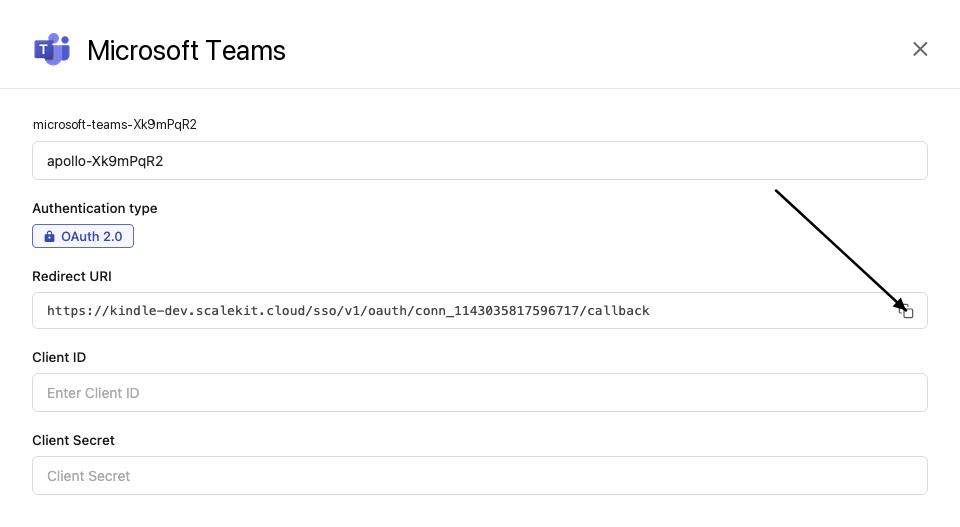
-
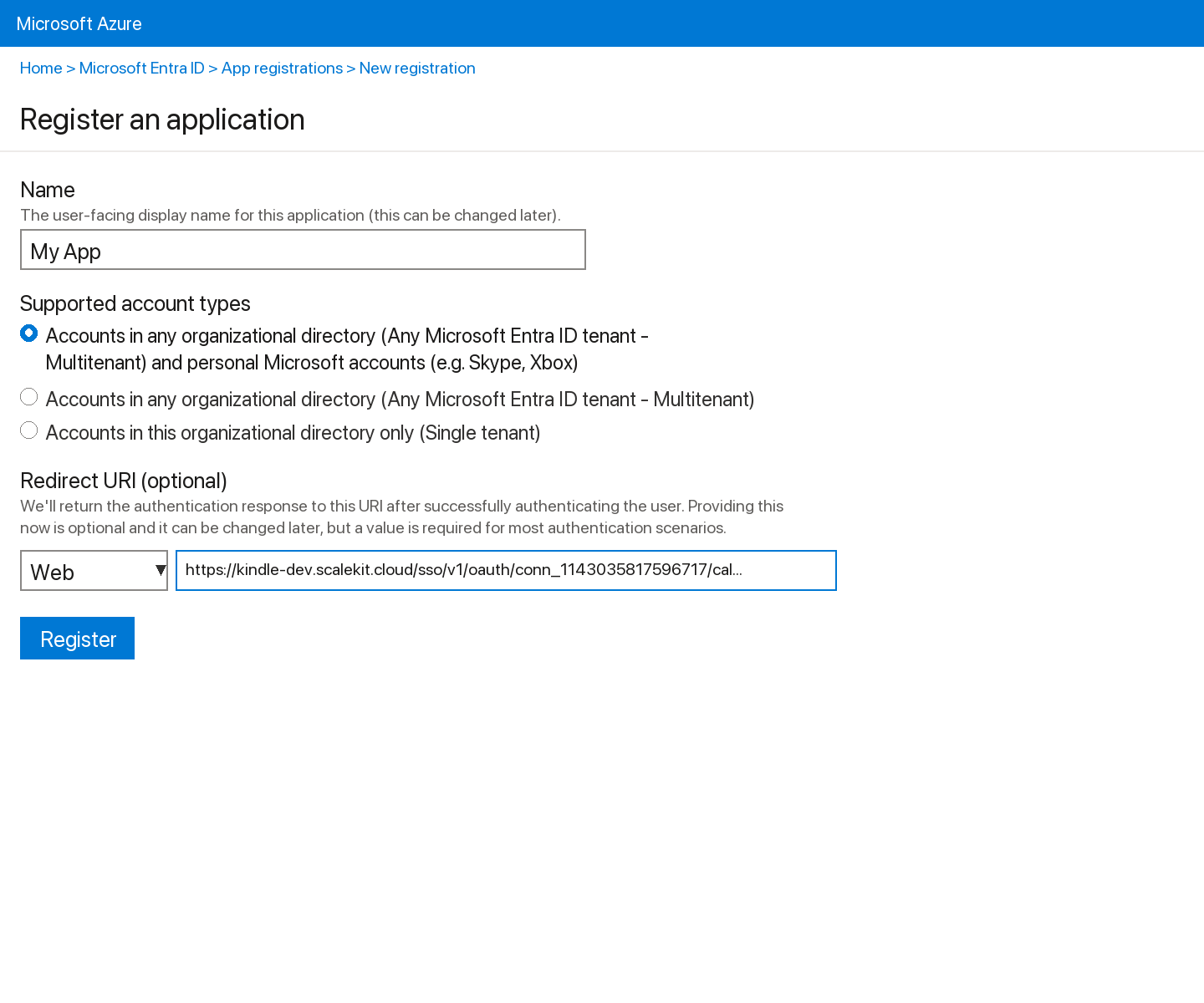
Sign into portal.azure.com and go to Microsoft Entra ID → App registrations → New registration.
-
Enter a name for your app.
-
Under Supported account types, select Accounts in any organizational directory (Any Azure AD directory - Multitenant).
-
Under Redirect URI, select Web and paste the redirect URI from step 1. Click Register.
-
Go to Certificates & secrets → New client secret, set an expiry, and click Add. Copy the Value immediately.
-
From the Overview page, copy the Application (client) ID.
-
-
Create an Azure bot
-
In the Azure portal, search for Azure Bot and click Create.
-
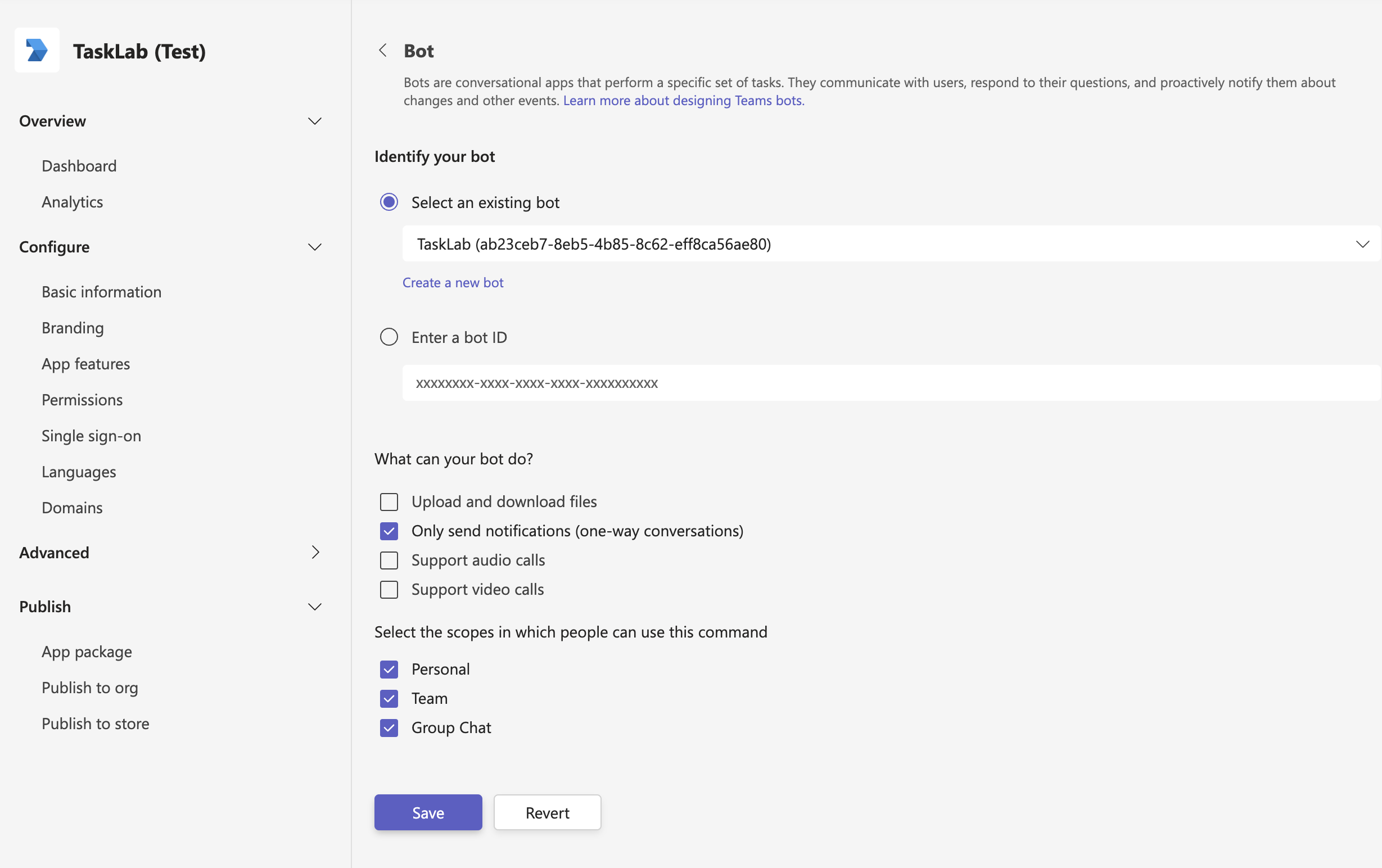
Enter a bot handle name, select your subscription and resource group, and set the Microsoft App ID to the Application (client) ID from above. Click Review + create.
-
Once created, go to Channels and add the Microsoft Teams channel to enable Teams integration.
-
-
Add credentials in Scalekit
-
In Scalekit dashboard, go to AgentKit > Connections and open the connection you created.
-
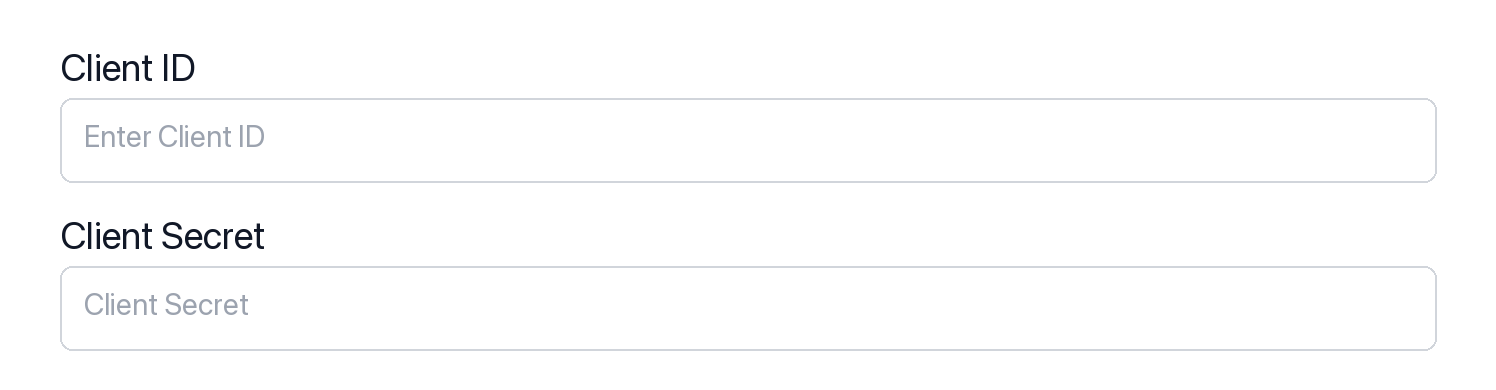
Enter your credentials:
- Client ID (Application (client) ID from Azure App Registration)
- Client Secret (from Certificates & secrets)
- Permissions (scopes — see Microsoft Graph permissions reference)
-
Click Save.
-
-
-
Authorize and make your first call
Section titled “Authorize and make your first call”quickstart.ts import { ScalekitClient } from '@scalekit-sdk/node'import 'dotenv/config'const scalekit = new ScalekitClient(process.env.SCALEKIT_ENV_URL,process.env.SCALEKIT_CLIENT_ID,process.env.SCALEKIT_CLIENT_SECRET,)const actions = scalekit.actionsconst connector = 'microsoftteams'const identifier = 'user_123'// Generate an authorization link for the userconst { link } = await actions.getAuthorizationLink({ connectionName: connector, identifier })console.log('Authorize Teams:', link)process.stdout.write('Press Enter after authorizing...')await new Promise(r => process.stdin.once('data', r))// Make your first callconst result = await actions.executeTool({connector,identifier,toolName: 'microsoftteams_list_teams',toolInput: {},})console.log(result)quickstart.py import osfrom scalekit.client import ScalekitClientfrom dotenv import load_dotenvload_dotenv()scalekit_client = ScalekitClient(env_url=os.getenv("SCALEKIT_ENV_URL"),client_id=os.getenv("SCALEKIT_CLIENT_ID"),client_secret=os.getenv("SCALEKIT_CLIENT_SECRET"),)actions = scalekit_client.actionsconnection_name = "microsoftteams"identifier = "user_123"# Generate an authorization link for the userlink_response = actions.get_authorization_link(connection_name=connection_name,identifier=identifier,)print("Authorize Teams:", link_response.link)input("Press Enter after authorizing...")# Make your first callresult = actions.execute_tool(tool_input={},tool_name="microsoftteams_list_teams",connection_name=connection_name,identifier=identifier,)print(result)
What you can do
Section titled “What you can do”Connect this agent connector to let your agent:
- Member add team, remove team — Add a user to a Microsoft Teams team as a member or owner
- Request approve time off, decline time off — Approve a pending time-off request in a Microsoft Teams team schedule
- Channel archive — Archive a channel in a Microsoft Teams team, making it read-only for members
- Team archive, clone — Archive a Microsoft Teams team, making it read-only
- Presence clear user, set preferred, set user — Clear a previously set presence override for the signed-in user in Microsoft Teams for a specific application session
- Create channel, online meeting, shift — Create a new channel in a Microsoft Teams team
Common workflows
Section titled “Common workflows”Proxy API call
// Make a request via Scalekit proxyconst result = await actions.request({ connectionName: 'microsoftteams', identifier: 'user_123', path: '/v1.0/me', method: 'GET',});console.log(result);# Make a request via Scalekit proxyresult = actions.request( connection_name='microsoftteams', identifier='user_123', path="/v1.0/me", method="GET")print(result)Execute a tool
const result = await actions.executeTool({ connector: 'microsoftteams', identifier: 'user_123', toolName: 'microsoftteams_list', toolInput: {},});console.log(result);result = actions.execute_tool( connection_name='microsoftteams', identifier='user_123', tool_name='microsoftteams_list', tool_input={},)print(result)Tool list
Section titled “Tool list”Use the exact tool names from the Tool list below when you call execute_tool. If you’re not sure which name to use, list the tools available for the current user first.
microsoftteams_add_team_member#Add a user to a Microsoft Teams team as a member or owner. Requires the team ID and the Azure AD user ID of the person to add. The user must exist in the same tenant. Returns the new conversationMember resource on success (HTTP 201).3 params
Add a user to a Microsoft Teams team as a member or owner. Requires the team ID and the Azure AD user ID of the person to add. The user must exist in the same tenant. Returns the new conversationMember resource on success (HTTP 201).
team_idstringrequiredThe unique identifier of the Microsoft Teams team to add the member to.user_idstringrequiredThe Azure AD object ID of the user to add to the team. This is the user's unique identifier in Microsoft Entra ID, not their email address.rolestringoptionalThe role to assign to the added user. Valid values: 'member' (standard member) or 'owner' (team owner with admin privileges). Defaults to 'member'.microsoftteams_approve_time_off_request#Approve a pending time-off request in a Microsoft Teams team schedule. Requires the team ID and request ID. Optionally include a manager note to send with the approval. Returns HTTP 204 No Content on success.3 params
Approve a pending time-off request in a Microsoft Teams team schedule. Requires the team ID and request ID. Optionally include a manager note to send with the approval. Returns HTTP 204 No Content on success.
request_idstringrequiredThe unique identifier of the time-off request to approve. Obtain from the list time-off requests API.team_idstringrequiredThe unique identifier of the Microsoft Teams team whose schedule contains the time-off request.messagestringoptionalOptional message from the manager to include with the approval decision. Example: 'Approved, enjoy your vacation!'microsoftteams_archive_channel#Archive a channel in a Microsoft Teams team, making it read-only for members. Archiving is reversible — the channel can be unarchived later. Optionally sets the associated SharePoint site to read-only.3 params
Archive a channel in a Microsoft Teams team, making it read-only for members. Archiving is reversible — the channel can be unarchived later. Optionally sets the associated SharePoint site to read-only.
channel_idstringrequiredThe unique identifier of the Teams channel to archive.team_idstringrequiredThe unique identifier of the Microsoft Teams team that contains the channel to archive.set_spo_site_readonlybooleanoptionalIf true, the SharePoint Online (SPO) site associated with the channel will also be set to read-only when the channel is archived. Defaults to false.microsoftteams_archive_team#Archive a Microsoft Teams team, making it read-only. The team is archived asynchronously (HTTP 202). Optionally set the SharePoint site associated with the team to read-only as well. To restore a team, use the unarchive endpoint.2 params
Archive a Microsoft Teams team, making it read-only. The team is archived asynchronously (HTTP 202). Optionally set the SharePoint site associated with the team to read-only as well. To restore a team, use the unarchive endpoint.
team_idstringrequiredThe unique identifier of the Microsoft Teams team to archive.should_set_spo_site_read_only_for_membersbooleanoptionalIf true, sets the SharePoint Online site associated with the team to read-only for members. Defaults to false.microsoftteams_clear_user_presence#Clear a previously set presence override for the signed-in user in Microsoft Teams for a specific application session. Provide the same session ID used when calling setPresence. After clearing, Teams reverts to the user's actual computed presence. Requires the Presence.ReadWrite scope.1 param
Clear a previously set presence override for the signed-in user in Microsoft Teams for a specific application session. Provide the same session ID used when calling setPresence. After clearing, Teams reverts to the user's actual computed presence. Requires the Presence.ReadWrite scope.
session_idstringrequiredThe GUID of the application session whose presence override should be cleared. Must match the session ID passed to the setPresence call. Example: '22553876-f5ab-4529-bffb-cfe50aa89f87'.microsoftteams_clone_team#Clone an existing Microsoft Teams team into a new team, copying selected parts such as apps, tabs, settings, channels, and/or members. The clone operation is asynchronous (HTTP 202). Required: team_id, display_name, parts_to_clone.7 params
Clone an existing Microsoft Teams team into a new team, copying selected parts such as apps, tabs, settings, channels, and/or members. The clone operation is asynchronous (HTTP 202). Required: team_id, display_name, parts_to_clone.
display_namestringrequiredThe display name for the new cloned team.parts_to_clonestringrequiredComma-separated list of team parts to clone. Valid parts: apps, tabs, settings, channels, members. Example: 'apps,tabs,settings,channels,members'.team_idstringrequiredThe unique identifier of the Microsoft Teams team to clone.classificationstringoptionalClassification label for the cloned team (organization-defined, e.g., 'Confidential', 'Internal'). Optional.descriptionstringoptionalOptional description for the cloned team.mail_nicknamestringoptionalThe mail alias (nickname) for the new team's Microsoft 365 Group. Must be unique in the tenant and contain only alphanumeric characters and hyphens.visibilitystringoptionalVisibility of the cloned team. Valid values: 'public' (anyone in org can join), 'private' (owner must invite). Defaults to 'private'.microsoftteams_create_channel#Create a new channel in a Microsoft Teams team. Supports standard, private, and shared channel membership types. Requires the team ID and a display name for the new channel.4 params
Create a new channel in a Microsoft Teams team. Supports standard, private, and shared channel membership types. Requires the team ID and a display name for the new channel.
display_namestringrequiredThe display name of the new channel. Must be unique within the team and cannot contain special characters like #, &, :, <, >, *, ?.team_idstringrequiredThe unique identifier of the Microsoft Teams team in which to create the channel.descriptionstringoptionalOptional description for the new channel (plain text, up to 1024 characters).membership_typestringoptionalThe membership type of the channel: 'standard' (visible to all team members), 'private' (invite-only subset of team members), or 'shared' (shared with people outside the team). Defaults to 'standard'.microsoftteams_create_online_meeting#Create a new Microsoft Teams online meeting for the signed-in user. Requires a subject, start time, and end time in ISO 8601 format. Optionally invite attendees by UPN (email) and control who can present.5 params
Create a new Microsoft Teams online meeting for the signed-in user. Requires a subject, start time, and end time in ISO 8601 format. Optionally invite attendees by UPN (email) and control who can present.
end_date_timestringrequiredThe end date and time of the meeting in ISO 8601 UTC format. Example: '2024-07-15T10:00:00Z'.start_date_timestringrequiredThe start date and time of the meeting in ISO 8601 UTC format. Example: '2024-07-15T09:00:00Z'.subjectstringrequiredThe subject/title of the online meeting. Displayed to all participants in the meeting invite and join page.allowed_presentersstringoptionalWho can present in the meeting. 'everyone' allows all participants, 'organization' restricts to org members, 'roleIsPresenter' limits to assigned presenters, 'organizer' restricts to the meeting organizer only. Defaults to 'organization'.attendee_upnsarrayoptionalArray of UPN (User Principal Name / email address) strings for meeting attendees. Example: ["alice@contoso.com", "bob@contoso.com"]. Each UPN is mapped to an attendee object in the participants block.microsoftteams_create_shift#Create a new shift in a Microsoft Teams team schedule. Requires team ID, user ID, scheduling group ID, and start/end date times in ISO 8601 format. Optionally set a display name, notes, and theme color for the shift.8 params
Create a new shift in a Microsoft Teams team schedule. Requires team ID, user ID, scheduling group ID, and start/end date times in ISO 8601 format. Optionally set a display name, notes, and theme color for the shift.
end_date_timestringrequiredThe end date and time of the shift in ISO 8601 UTC format. Example: '2024-07-15T17:00:00Z'.scheduling_group_idstringrequiredThe unique identifier of the scheduling group (team member group) to assign the shift to. Obtain from the scheduling groups API.start_date_timestringrequiredThe start date and time of the shift in ISO 8601 UTC format. Example: '2024-07-15T09:00:00Z'.team_idstringrequiredThe unique identifier of the Microsoft Teams team whose schedule to create the shift in.user_idstringrequiredThe unique identifier (object ID) of the user to assign the shift to. Obtain from the Microsoft Entra user object or list users API.display_namestringoptionalOptional display name for the shift, shown on the schedule. Example: 'Morning Shift'.notesstringoptionalOptional notes or instructions for the shift, visible to the assigned user. Example: 'Please cover the front desk.'.themestringoptionalColor theme for the shift block on the schedule view. Valid values: white, blue, green, purple, pink, yellow, gray, darkBlue, darkGreen, darkPurple, darkPink, darkYellow. Defaults to 'blue'.microsoftteams_create_shift_swap_request#Create a shift swap request in a Microsoft Teams team schedule, proposing that two employees exchange their shifts. Requires the team ID, both employees' user IDs and their respective shift IDs. Optionally include a message from the requester.6 params
Create a shift swap request in a Microsoft Teams team schedule, proposing that two employees exchange their shifts. Requires the team ID, both employees' user IDs and their respective shift IDs. Optionally include a message from the requester.
recipient_shift_idstringrequiredThe unique identifier of the shift belonging to the recipient (the employee whose shift the sender wants to take). Obtain from the list shifts API.recipient_user_idstringrequiredThe Azure AD object ID of the employee being asked to swap their shift.sender_shift_idstringrequiredThe unique identifier of the shift belonging to the sender (the employee initiating the swap). Obtain from the list shifts API.sender_user_idstringrequiredThe Azure AD object ID of the employee initiating the shift swap request.team_idstringrequiredThe unique identifier of the Microsoft Teams team whose schedule the shift swap request belongs to.sender_messagestringoptionalOptional message from the requesting employee explaining why they want to swap. Example: 'I have a doctor's appointment during my shift.'microsoftteams_create_team#Create a new Microsoft Teams team from a template. The team is created asynchronously (HTTP 202); poll the returned operation URL for completion. Required: display_name. Optional: description and template (defaults to 'standard').3 params
Create a new Microsoft Teams team from a template. The team is created asynchronously (HTTP 202); poll the returned operation URL for completion. Required: display_name. Optional: description and template (defaults to 'standard').
display_namestringrequiredThe display name of the new team. Must be unique within the tenant.descriptionstringoptionalOptional description for the new team (plain text, up to 1024 characters).templatestringoptionalThe Teams template to use when creating the team. Valid values: 'standard', 'educationClass', 'educationStaff', 'educationProfessionalLearningCommunity', 'healthcareWard', 'healthcareTeam'. Defaults to 'standard'.microsoftteams_create_time_off_request#Submit a time-off request in a Microsoft Teams team schedule. Requires the team ID, the sender's user ID, start and end date-times in ISO 8601 UTC format, and the time-off reason ID. Optionally include a message from the sender to the manager.6 params
Submit a time-off request in a Microsoft Teams team schedule. Requires the team ID, the sender's user ID, start and end date-times in ISO 8601 UTC format, and the time-off reason ID. Optionally include a message from the sender to the manager.
end_date_timestringrequiredThe end date and time of the time-off period in ISO 8601 UTC format. Example: '2024-08-02T17:00:00Z'.sender_user_idstringrequiredThe Azure AD object ID of the employee submitting the time-off request. Obtain from the Microsoft Entra user object or list users API.start_date_timestringrequiredThe start date and time of the time-off period in ISO 8601 UTC format. Example: '2024-07-29T00:00:00Z'.team_idstringrequiredThe unique identifier of the Microsoft Teams team whose schedule the request belongs to.time_off_reason_idstringrequiredThe ID of the time-off reason (e.g., vacation, sick leave) defined in the team schedule. Obtain from the team's timeOffReasons API.sender_messagestringoptionalOptional message from the employee to the manager accompanying the time-off request. Example: 'Family vacation.'microsoftteams_decline_time_off_request#Decline a pending time-off request in a Microsoft Teams team schedule. Requires the team ID and request ID. Optionally include a manager message explaining the decision. Returns HTTP 204 No Content on success.3 params
Decline a pending time-off request in a Microsoft Teams team schedule. Requires the team ID and request ID. Optionally include a manager message explaining the decision. Returns HTTP 204 No Content on success.
request_idstringrequiredThe unique identifier of the time-off request to decline. Obtain from the list time-off requests API.team_idstringrequiredThe unique identifier of the Microsoft Teams team whose schedule contains the time-off request.messagestringoptionalOptional message from the manager to include with the decline decision. Example: 'Insufficient coverage during that period.'microsoftteams_delete_channel#Permanently delete a channel from a Microsoft Teams team. The General channel of a team cannot be deleted. This action is irreversible and removes all messages and content within the channel.2 params
Permanently delete a channel from a Microsoft Teams team. The General channel of a team cannot be deleted. This action is irreversible and removes all messages and content within the channel.
channel_idstringrequiredThe unique identifier of the Teams channel to delete. The General channel cannot be deleted.team_idstringrequiredThe unique identifier of the Microsoft Teams team that contains the channel to delete.microsoftteams_delete_channel_message#Soft-delete a Microsoft Teams channel message. The message is retracted and replaced with a tombstone indicating it was deleted.3 params
Soft-delete a Microsoft Teams channel message. The message is retracted and replaced with a tombstone indicating it was deleted.
channel_idstringrequiredThe unique identifier of the Teams channel containing the message to delete.message_idstringrequiredThe unique identifier of the channel message to soft-delete.team_idstringrequiredThe unique identifier of the Microsoft Teams team that contains the channel.microsoftteams_delete_online_meeting#Permanently delete a Microsoft Teams online meeting by meeting ID. This action cannot be undone and removes the meeting for all participants.1 param
Permanently delete a Microsoft Teams online meeting by meeting ID. This action cannot be undone and removes the meeting for all participants.
meeting_idstringrequiredThe unique identifier of the online meeting to delete. Obtain from the create meeting response or list meetings API.microsoftteams_delete_shift#Permanently delete a shift from a Microsoft Teams team schedule. Requires both the team ID and the shift ID. This action cannot be undone.2 params
Permanently delete a shift from a Microsoft Teams team schedule. Requires both the team ID and the shift ID. This action cannot be undone.
shift_idstringrequiredThe unique identifier of the shift to delete. Obtain from the create shift response or list shifts API.team_idstringrequiredThe unique identifier of the Microsoft Teams team whose schedule contains the shift to delete.microsoftteams_delete_team#Permanently delete a Microsoft Teams team by deleting the underlying Microsoft 365 Group. This action is irreversible. The team and all its channels, messages, and files will be permanently removed. Returns HTTP 204 with no body on success.1 param
Permanently delete a Microsoft Teams team by deleting the underlying Microsoft 365 Group. This action is irreversible. The team and all its channels, messages, and files will be permanently removed. Returns HTTP 204 with no body on success.
team_idstringrequiredThe unique identifier of the Microsoft Teams team (Group ID) to permanently delete.microsoftteams_get_channel#Retrieve the properties and metadata of a specific channel in a Microsoft Teams team, including its display name, description, membership type, and web URL.2 params
Retrieve the properties and metadata of a specific channel in a Microsoft Teams team, including its display name, description, membership type, and web URL.
channel_idstringrequiredThe unique identifier of the Teams channel to retrieve.team_idstringrequiredThe unique identifier of the Microsoft Teams team that contains the channel.microsoftteams_get_channel_message#Retrieve a single message from a Microsoft Teams channel by its ID, including body content, sender info, attachments, reactions, and metadata.3 params
Retrieve a single message from a Microsoft Teams channel by its ID, including body content, sender info, attachments, reactions, and metadata.
channel_idstringrequiredThe unique identifier of the Teams channel containing the message.message_idstringrequiredThe unique identifier of the Teams channel message to retrieve.team_idstringrequiredThe unique identifier of the Microsoft Teams team that contains the channel.microsoftteams_get_chat_message#Retrieve a single message from a Microsoft Teams chat by its ID, including body content, sender info, attachments, reactions, and metadata.2 params
Retrieve a single message from a Microsoft Teams chat by its ID, including body content, sender info, attachments, reactions, and metadata.
chat_idstringrequiredThe unique identifier of the Teams chat that contains the message.message_idstringrequiredThe unique identifier of the Teams chat message to retrieve.microsoftteams_get_online_meeting#Retrieve details of a specific Microsoft Teams online meeting by meeting ID. Returns meeting properties including subject, join URL, start/end times, participants, and meeting options.1 param
Retrieve details of a specific Microsoft Teams online meeting by meeting ID. Returns meeting properties including subject, join URL, start/end times, participants, and meeting options.
meeting_idstringrequiredThe unique identifier of the online meeting to retrieve. Obtain from the create meeting response or list meetings API.microsoftteams_get_team#Retrieve the properties and relationships of a Microsoft Teams team by its team ID. Returns team details including display name, description, visibility, member settings, and guest settings.1 param
Retrieve the properties and relationships of a Microsoft Teams team by its team ID. Returns team details including display name, description, visibility, member settings, and guest settings.
team_idstringrequiredThe unique identifier of the Microsoft Teams team to retrieve.microsoftteams_list_channel_message_replies#List all replies in a Microsoft Teams channel message thread. Returns replies to the specified parent message with support for pagination.5 params
List all replies in a Microsoft Teams channel message thread. Returns replies to the specified parent message with support for pagination.
channel_idstringrequiredThe unique identifier of the Teams channel containing the message thread.message_idstringrequiredThe unique identifier of the parent channel message whose replies to list.team_idstringrequiredThe unique identifier of the Microsoft Teams team that contains the channel.$skipintegeroptionalNumber of replies to skip for pagination. Use with $top to page through results.$topintegeroptionalMaximum number of replies to return per page. Use to control page size.microsoftteams_list_channel_messages#List messages in a Microsoft Teams channel with support for pagination. Returns up to 20 messages by default (max 50 per page).4 params
List messages in a Microsoft Teams channel with support for pagination. Returns up to 20 messages by default (max 50 per page).
channel_idstringrequiredThe unique identifier of the Teams channel to list messages from.team_idstringrequiredThe unique identifier of the Microsoft Teams team that contains the channel.$skipintegeroptionalNumber of messages to skip for pagination. Use with $top to page through results.$topintegeroptionalNumber of channel messages to return per page (1–50, default: 20). Microsoft Graph caps this at 50 for channel messages.microsoftteams_list_channel_tabs#List all tabs pinned to a Microsoft Teams channel. By default expands the teamsApp relationship to include app details for each tab.3 params
List all tabs pinned to a Microsoft Teams channel. By default expands the teamsApp relationship to include app details for each tab.
channel_idstringrequiredThe unique identifier of the Teams channel whose tabs to list.team_idstringrequiredThe unique identifier of the Microsoft Teams team that contains the channel.$expandstringoptionalOData $expand expression to include related resources. Defaults to 'teamsApp' which includes the app details for each tab. Set to null to suppress expansion.microsoftteams_list_channels#List all channels in a Microsoft Teams team. Supports OData filtering (e.g., by membershipType) and field selection to reduce response size.3 params
List all channels in a Microsoft Teams team. Supports OData filtering (e.g., by membershipType) and field selection to reduce response size.
team_idstringrequiredThe unique identifier of the Microsoft Teams team whose channels to list.$filterstringoptionalOData filter expression to narrow results. Example: "membershipType eq 'standard'" or "displayName eq 'General'".$selectstringoptionalComma-separated list of channel properties to return. Example: 'id,displayName,membershipType,webUrl'. Reduces response payload size.microsoftteams_list_chat_messages#List messages in a Microsoft Teams chat (1:1, group, or meeting chat) with support for pagination and ordering. Returns up to 50 messages per page ordered by creation time descending by default.3 params
List messages in a Microsoft Teams chat (1:1, group, or meeting chat) with support for pagination and ordering. Returns up to 50 messages per page ordered by creation time descending by default.
chat_idstringrequiredThe unique identifier of the Teams chat to list messages from. Obtain from the list chats API or Teams URL.$orderbystringoptionalOData orderby expression for sorting messages. Default is 'createdDateTime desc' (newest first). Example: 'createdDateTime asc' for oldest first.$topintegeroptionalNumber of chat messages to return per page (1–50, default: 50). Microsoft Graph caps this at 50 for chat messages.microsoftteams_list_shift_swap_requests#List shift swap change requests in a Microsoft Teams team schedule. Supports OData $filter (e.g., filter by state) and $top to control the number of results returned.3 params
List shift swap change requests in a Microsoft Teams team schedule. Supports OData $filter (e.g., filter by state) and $top to control the number of results returned.
team_idstringrequiredThe unique identifier of the Microsoft Teams team whose schedule shift swap requests to list.$filterstringoptionalOData filter expression to narrow shift swap request results. Example: "state eq 'pending'" to fetch only pending swap requests.$topintegeroptionalMaximum number of shift swap requests to return. Use to limit the response size. Example: 25.microsoftteams_list_shifts#List shifts in a Microsoft Teams team schedule. Supports OData $filter (e.g., filter by start date) and $top to control the number of results returned.3 params
List shifts in a Microsoft Teams team schedule. Supports OData $filter (e.g., filter by start date) and $top to control the number of results returned.
team_idstringrequiredThe unique identifier of the Microsoft Teams team whose schedule shifts to list.$filterstringoptionalOData filter expression to narrow shift results. Example: "sharedShift/startDateTime ge 2024-07-01T00:00:00Z" to fetch shifts starting on or after July 1, 2024.$topintegeroptionalMaximum number of shifts to return. Use to limit the response size. Example: 25.microsoftteams_list_team_members#List all members (including owners) of a Microsoft Teams team. Returns conversationMember resources with membership IDs, user details, and roles. Supports OData filtering and field selection.4 params
List all members (including owners) of a Microsoft Teams team. Returns conversationMember resources with membership IDs, user details, and roles. Supports OData filtering and field selection.
team_idstringrequiredThe unique identifier of the Microsoft Teams team whose members to list.$filterstringoptionalOData filter expression to narrow results. Example: "roles/any(r:r eq 'owner')" to list only owners.$selectstringoptionalComma-separated list of member properties to return. Example: 'id,displayName,roles,email'. Reduces response payload size.$topintegeroptionalMaximum number of members to return per page. Use for pagination.microsoftteams_list_teams#List all Microsoft Teams teams that the signed-in user has joined. Supports OData query options for filtering, field selection, and pagination.3 params
List all Microsoft Teams teams that the signed-in user has joined. Supports OData query options for filtering, field selection, and pagination.
$filterstringoptionalOData filter expression to narrow results. Example: "displayName eq 'Engineering'".$selectstringoptionalComma-separated list of team properties to return. Example: 'id,displayName,description,visibility'. Reduces response payload size.$topintegeroptionalMaximum number of teams to return per page. Use for pagination.microsoftteams_list_time_off_requests#List time-off requests in a Microsoft Teams team schedule. Supports OData $filter (e.g., filter by status or date range) and $top to control the number of results returned.3 params
List time-off requests in a Microsoft Teams team schedule. Supports OData $filter (e.g., filter by status or date range) and $top to control the number of results returned.
team_idstringrequiredThe unique identifier of the Microsoft Teams team whose schedule time-off requests to list.$filterstringoptionalOData filter expression to narrow time-off request results. Example: "state eq 'pending'" to fetch only pending requests.$topintegeroptionalMaximum number of time-off requests to return. Use to limit the response size. Example: 25.microsoftteams_pin_channel_message#Pin a message in a Microsoft Teams channel so it appears in the channel's pinned messages list. Requires the team ID, channel ID, and message ID.3 params
Pin a message in a Microsoft Teams channel so it appears in the channel's pinned messages list. Requires the team ID, channel ID, and message ID.
channel_idstringrequiredThe unique identifier of the Teams channel that contains the message to pin.message_idstringrequiredThe unique identifier of the Teams channel message to pin.team_idstringrequiredThe unique identifier of the Microsoft Teams team that contains the channel.microsoftteams_provision_channel_email#Provision an email address for a Microsoft Teams channel, enabling users to send emails directly to the channel. Returns the provisioned email address. If an email has already been provisioned, returns the existing address.2 params
Provision an email address for a Microsoft Teams channel, enabling users to send emails directly to the channel. Returns the provisioned email address. If an email has already been provisioned, returns the existing address.
channel_idstringrequiredThe unique identifier of the Teams channel for which to provision an email address.team_idstringrequiredThe unique identifier of the Microsoft Teams team that contains the channel.microsoftteams_remove_channel_email#Remove the email address provisioned for a Microsoft Teams channel. After removal, emails can no longer be sent to the channel via that email address.2 params
Remove the email address provisioned for a Microsoft Teams channel. After removal, emails can no longer be sent to the channel via that email address.
channel_idstringrequiredThe unique identifier of the Teams channel from which to remove the provisioned email address.team_idstringrequiredThe unique identifier of the Microsoft Teams team that contains the channel.microsoftteams_remove_team_member#Remove a member from a Microsoft Teams team. Requires the team ID and the conversationMember ID (not the Azure AD user ID). The membership_id is the ID returned by the list team members or add team member APIs. Returns HTTP 204 with no body on success.2 params
Remove a member from a Microsoft Teams team. Requires the team ID and the conversationMember ID (not the Azure AD user ID). The membership_id is the ID returned by the list team members or add team member APIs. Returns HTTP 204 with no body on success.
membership_idstringrequiredThe conversationMember ID of the membership to remove. This is the unique ID of the member's team membership, returned by the list team members or add member APIs — it is NOT the Azure AD user ID.team_idstringrequiredThe unique identifier of the Microsoft Teams team from which to remove the member.microsoftteams_reply_to_channel_message#Post a reply to an existing Microsoft Teams channel message thread. Supports plain text or HTML content, an optional subject, and importance levels.7 params
Post a reply to an existing Microsoft Teams channel message thread. Supports plain text or HTML content, an optional subject, and importance levels.
channel_idstringrequiredThe unique identifier of the Teams channel containing the message to reply to.contentstringrequiredThe text or HTML content of the reply message.message_idstringrequiredThe unique identifier of the channel message to reply to.team_idstringrequiredThe unique identifier of the Microsoft Teams team that contains the channel.content_typestringoptionalThe format of the reply content: 'text' for plain text or 'html' for HTML markup. Defaults to 'text'.importancestringoptionalThe importance of the reply message. Valid values: 'normal', 'high', 'urgent'.subjectstringoptionalOptional subject line for the reply (appears as a headline above the body).microsoftteams_reply_to_chat_message#Send a reply to an existing message in a Microsoft Teams chat thread. Supports plain text or HTML content. This endpoint is available on the Microsoft Graph beta API.4 params
Send a reply to an existing message in a Microsoft Teams chat thread. Supports plain text or HTML content. This endpoint is available on the Microsoft Graph beta API.
chat_idstringrequiredThe unique identifier of the Teams chat that contains the message to reply to.contentstringrequiredThe text or HTML content of the reply message.message_idstringrequiredThe unique identifier of the Teams chat message to reply to.content_typestringoptionalThe format of the reply content: 'text' for plain text or 'html' for HTML markup. Defaults to 'text'.microsoftteams_search_messages#Search Microsoft Teams chat messages across all chats and channels accessible to the signed-in user using the Microsoft Search API. Supports pagination via from/size parameters. Returns up to 25 results by default.3 params
Search Microsoft Teams chat messages across all chats and channels accessible to the signed-in user using the Microsoft Search API. Supports pagination via from/size parameters. Returns up to 25 results by default.
querystringrequiredThe search query string to find matching Teams messages. Supports keyword search and KQL (Keyword Query Language). Example: 'project kickoff' or 'from:alice@example.com subject:budget'.fromintegeroptionalZero-based index of the first result to return, used for pagination. Default is 0 (start from the first result).sizeintegeroptionalNumber of results to return per page. Default is 25, maximum is 200.microsoftteams_send_channel_message#Send a new message to a Microsoft Teams channel. Supports plain text or HTML content, an optional subject line, and importance levels (normal, high, urgent).6 params
Send a new message to a Microsoft Teams channel. Supports plain text or HTML content, an optional subject line, and importance levels (normal, high, urgent).
channel_idstringrequiredThe unique identifier of the Teams channel to send the message to.contentstringrequiredThe text or HTML content of the message to send.team_idstringrequiredThe unique identifier of the Microsoft Teams team that contains the channel.content_typestringoptionalThe format of the message content: 'text' for plain text or 'html' for HTML markup. Defaults to 'text'.importancestringoptionalThe importance of the message. Valid values: 'normal', 'high', 'urgent'. Defaults to normal if omitted.subjectstringoptionalOptional subject line for the channel message (appears as a headline above the body).microsoftteams_send_chat_message#Send a new message to a Microsoft Teams chat (1:1, group, or meeting chat). Supports plain text or HTML content. Requires Chat.ReadWrite scope.3 params
Send a new message to a Microsoft Teams chat (1:1, group, or meeting chat). Supports plain text or HTML content. Requires Chat.ReadWrite scope.
chat_idstringrequiredThe unique identifier of the Teams chat to send the message to. Obtain from the list chats API or Teams client URL.contentstringrequiredThe text or HTML content of the message to send to the chat.content_typestringoptionalThe format of the message content: 'text' for plain text or 'html' for HTML markup. Defaults to 'text'.microsoftteams_set_preferred_presence#Set the preferred presence status for the signed-in user in Microsoft Teams. Unlike setPresence (which is session-scoped), this persists a user-level preferred status that overrides the computed presence. Requires availability and activity values. Optionally specify an expiration duration in ISO 8601 format (e.g., PT1H). Requires the Presence.ReadWrite scope.3 params
Set the preferred presence status for the signed-in user in Microsoft Teams. Unlike setPresence (which is session-scoped), this persists a user-level preferred status that overrides the computed presence. Requires availability and activity values. Optionally specify an expiration duration in ISO 8601 format (e.g., PT1H). Requires the Presence.ReadWrite scope.
activitystringrequiredThe preferred activity of the user. Must be consistent with the chosen availability. Valid values: Available, Busy, InACall, InAConferenceCall, InAMeeting, Presenting, Away, DoNotDisturb, UrgentInterruptionsOnly, OffWork.availabilitystringrequiredThe preferred presence state of the user at the user level (not session-scoped). Valid values: Available, Busy, DoNotDisturb, BeRightBack, Away, Offline.expiration_durationstringoptionalHow long the preferred presence override should remain active, expressed as an ISO 8601 duration. Example: 'PT1H' for 1 hour, 'PT4H' for 4 hours. If omitted, the preference persists until explicitly cleared via clearUserPreferredPresence.microsoftteams_set_user_presence#Set the presence status of the signed-in user in Microsoft Teams for a specific application session. Requires a session ID (a stable GUID representing the calling app), an availability value (e.g., Available, Busy, DoNotDisturb), and an activity value. Optionally specify an expiration duration in ISO 8601 duration format (e.g., PT1H). Requires the Presence.ReadWrite scope.4 params
Set the presence status of the signed-in user in Microsoft Teams for a specific application session. Requires a session ID (a stable GUID representing the calling app), an availability value (e.g., Available, Busy, DoNotDisturb), and an activity value. Optionally specify an expiration duration in ISO 8601 duration format (e.g., PT1H). Requires the Presence.ReadWrite scope.
activitystringrequiredThe current activity of the user. Must be consistent with the chosen availability. Valid values: Available, Busy, InACall, InAConferenceCall, InAMeeting, Presenting, Away, DoNotDisturb, UrgentInterruptionsOnly, OffWork.availabilitystringrequiredThe base presence state of the user. Valid values: Available, Busy, DoNotDisturb, BeRightBack, Away, Offline.session_idstringrequiredA stable GUID identifying the calling application session. Use a consistent GUID per application so multiple calls from the same app update the same session. Example: '22553876-f5ab-4529-bffb-cfe50aa89f87'.expiration_durationstringoptionalHow long the presence override should remain active, expressed as an ISO 8601 duration. Example: 'PT1H' for 1 hour, 'PT30M' for 30 minutes. If omitted, the presence persists until explicitly cleared.microsoftteams_unpin_channel_message#Unpin a previously pinned message in a Microsoft Teams channel. The message remains in the channel history but is removed from the pinned messages list.3 params
Unpin a previously pinned message in a Microsoft Teams channel. The message remains in the channel history but is removed from the pinned messages list.
channel_idstringrequiredThe unique identifier of the Teams channel that contains the pinned message.message_idstringrequiredThe unique identifier of the Teams channel message to unpin.team_idstringrequiredThe unique identifier of the Microsoft Teams team that contains the channel.microsoftteams_update_channel#Update the properties of an existing Microsoft Teams channel, such as its display name or description. At least one of display_name or description must be provided.4 params
Update the properties of an existing Microsoft Teams channel, such as its display name or description. At least one of display_name or description must be provided.
channel_idstringrequiredThe unique identifier of the Teams channel to update.team_idstringrequiredThe unique identifier of the Microsoft Teams team that contains the channel to update.descriptionstringoptionalNew description for the channel. Optional. At least one of display_name or description must be provided.display_namestringoptionalNew display name for the channel. Cannot contain special characters like #, &, :, <, >, *, ?. At least one of display_name or description must be provided.microsoftteams_update_channel_message#Update the body content of an existing Microsoft Teams channel message. Only the message body can be edited after posting.5 params
Update the body content of an existing Microsoft Teams channel message. Only the message body can be edited after posting.
channel_idstringrequiredThe unique identifier of the Teams channel containing the message to update.contentstringrequiredThe new text or HTML content to replace the existing message body with.message_idstringrequiredThe unique identifier of the channel message to update.team_idstringrequiredThe unique identifier of the Microsoft Teams team that contains the channel.content_typestringoptionalThe format of the updated content: 'text' for plain text or 'html' for HTML markup. Defaults to 'text'.microsoftteams_update_online_meeting#Update an existing Microsoft Teams online meeting by meeting ID. Any combination of subject, start time, end time, and allowed presenters can be updated in a single call.5 params
Update an existing Microsoft Teams online meeting by meeting ID. Any combination of subject, start time, end time, and allowed presenters can be updated in a single call.
meeting_idstringrequiredThe unique identifier of the online meeting to update. Obtain from the ID field returned when creating or listing meetings.allowed_presentersstringoptionalUpdated setting for who can present in the meeting. Valid values: 'everyone', 'organization', 'roleIsPresenter', 'organizer'.end_date_timestringoptionalUpdated end date and time for the meeting in ISO 8601 UTC format. Example: '2024-07-15T11:00:00Z'. Leave blank to keep the existing end time.start_date_timestringoptionalUpdated start date and time for the meeting in ISO 8601 UTC format. Example: '2024-07-15T10:00:00Z'. Leave blank to keep the existing start time.subjectstringoptionalUpdated subject/title for the online meeting. Leave blank to keep the existing subject.microsoftteams_update_shift#Update an existing shift in a Microsoft Teams team schedule by shift ID. Replaces the shift with the provided fields. Requires team ID and shift ID. The sharedShift block fields (start/end time, display name, notes, theme) are built conditionally from optional inputs.9 params
Update an existing shift in a Microsoft Teams team schedule by shift ID. Replaces the shift with the provided fields. Requires team ID and shift ID. The sharedShift block fields (start/end time, display name, notes, theme) are built conditionally from optional inputs.
shift_idstringrequiredThe unique identifier of the shift to update. Obtain from the create shift response or list shifts API.team_idstringrequiredThe unique identifier of the Microsoft Teams team whose schedule contains the shift.display_namestringoptionalUpdated display name for the shift shown on the schedule. Leave blank to keep the existing display name.end_date_timestringoptionalUpdated end date and time for the shift in ISO 8601 UTC format. Example: '2024-07-15T18:00:00Z'. Leave blank to keep the existing end time.notesstringoptionalUpdated notes for the shift visible to the assigned employee. Leave blank to keep the existing notes.scheduling_group_idstringoptionalUpdated scheduling group ID for the shift. Leave blank to keep the existing scheduling group.start_date_timestringoptionalUpdated start date and time for the shift in ISO 8601 UTC format. Example: '2024-07-15T10:00:00Z'. Leave blank to keep the existing start time.themestringoptionalUpdated color theme for the shift block on the schedule view. Valid values: white, blue, green, purple, pink, yellow, gray, darkBlue, darkGreen, darkPurple, darkPink, darkYellow.user_idstringoptionalUpdated user ID (Azure AD object ID) to reassign the shift to. Leave blank to keep the existing assignment.microsoftteams_update_team#Update the properties of an existing Microsoft Teams team. Requires team_id. At least one of display_name, description, or visibility must be provided. Returns HTTP 204 with no body on success.4 params
Update the properties of an existing Microsoft Teams team. Requires team_id. At least one of display_name, description, or visibility must be provided. Returns HTTP 204 with no body on success.
team_idstringrequiredThe unique identifier of the Microsoft Teams team to update.descriptionstringoptionalNew description for the team (plain text, up to 1024 characters).display_namestringoptionalNew display name for the team.visibilitystringoptionalVisibility of the team. Valid values: 'public' (anyone in org can join), 'private' (owner must invite). Note: changing from private to public is allowed; changing back may be restricted.microsoftteams_update_team_member#Update the role of an existing member in a Microsoft Teams team, promoting them to owner or demoting them to member. Requires the team ID, the conversationMember ID (membership_id), and the new role. Returns the updated conversationMember resource (HTTP 200).3 params
Update the role of an existing member in a Microsoft Teams team, promoting them to owner or demoting them to member. Requires the team ID, the conversationMember ID (membership_id), and the new role. Returns the updated conversationMember resource (HTTP 200).
membership_idstringrequiredThe conversationMember ID of the membership to update. This is the unique ID of the member's team membership returned by the list team members or add member APIs — it is NOT the Azure AD user ID.rolestringrequiredThe new role to assign to the team member. Valid values: 'member' (standard member) or 'owner' (team owner with admin privileges).team_idstringrequiredThe unique identifier of the Microsoft Teams team containing the member to update.